

AI Connect Setup
Create an API key and add Ego Cart to Claude, Cursor or VS Code, so your own AI tool can read your cart results and change cart settings.
What is AI Connect?
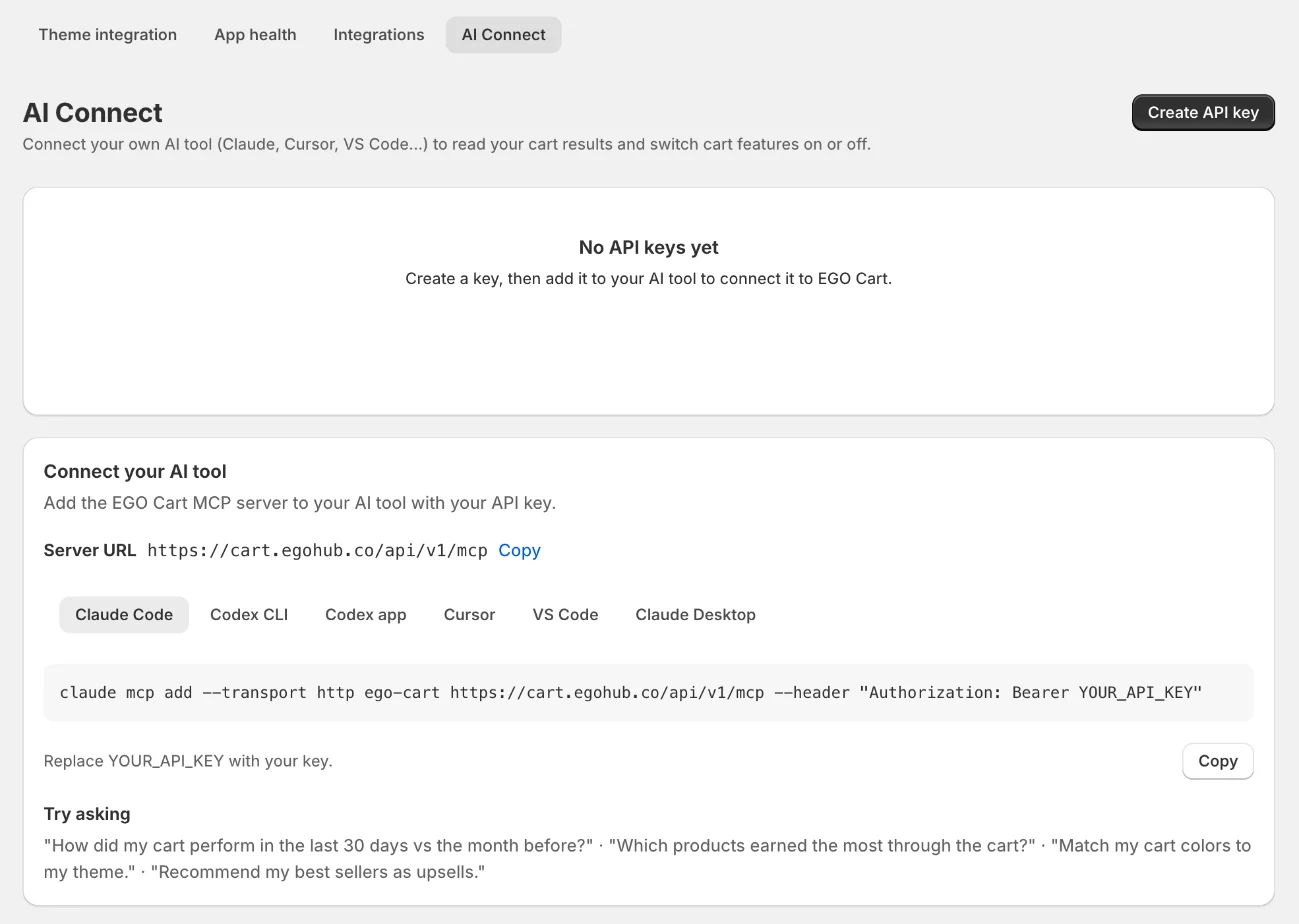
AI Connect lets an AI tool you already use — Claude Code, Claude Desktop, Cursor, VS Code and other tools that support MCP servers — talk to Ego Cart. Once connected, you can ask it things like:
"How did my cart perform in the last 30 days vs the month before?"
"Which products earned the most through the cart?"
"Match my cart colors to my theme."
"Recommend my best sellers as upsells."
Every key can read your carts, module settings and cart results. It never sees customer details.
Step 1: Create an API key
Open AI Connect (under Settings in the app menu) and click Create API key.
Give the key a Name you will recognise, for example Claude on my laptop.
Decide whether to tick Allow changing the cart. Without it the key is Read only. With it the AI tool can switch modules on or off and edit colors, upsells, free gifts, rewards and other settings — it always shows you the change first.
Click Create key, then Copy the key.
Copy the key now. For security it is shown only once. If you lose it, revoke it and create a new one.
Step 2: Add Ego Cart to your AI tool
The Connect your AI tool card on the same page shows the Server URL and a ready-to-copy snippet for each tool:
| Tool | Where the snippet goes |
|---|---|
| Claude Code | Run the command shown in your terminal. |
| Codex CLI, Codex app | Follow the snippet shown on the tab. |
| Cursor | ~/.cursor/mcp.json |
| VS Code | .vscode/mcp.json |
| Claude Desktop | claude_desktop_config.json |
Copy the snippet for your tool and replace the key placeholder with the key you copied in step 1. Restart the tool if it does not pick up the new server.
Manage and revoke keys
The API keys list shows each key's name, whether it is Read only or Read + change cart, and when it was last used.
To stop a tool from accessing your store, click Revoke next to its key. Tools using that key lose access right away, and this can't be undone. There is a limit on how many keys a store can have; revoke one you no longer use to create another.
Still need help?
Our support team is available 24/7. Contact support →